How to start SEO for your NEW website?
SEO checklist for new websites
In today’s world we need checklists for everything, So here is you seo checklist for new websites. Businesses and individuals must establish a strong online presence to get noticed. Mastering SEO is the key to making your website stand out on search engines like Google and Bing. But what’s all the fuss about SEO, how and where do you start?
Think of SEO as a way to make your website more attractive to search engines. Doing SEO correctly ensures that more people, especially those genuinely interested in your offerings, discover your website in search results.
Starting SEO can seem daunting for newcomers. Essentially, it boils down to monitoring engagement and ensuring search engines recognize your site. Tracking your site’s performance reveals user preferences and areas for improvement. Once indexed, your site appears in search results for relevant queries.
To start off
My seo checklist for new websites, you’ll need to set up some important accounts and link them to your website. These tools offer valuable insights into your website’s performance and understanding your audience.
In this guide, we’ll explore each tool, their importance, and setup for SEO. It’s beginner-friendly, covering visitor insights, traffic sources, and improving local visibility for SEO success.
Accounts you will be making
- Google Search Console
- Google Analytics
- Bing Webmaster Account
- Yelp Business Account
- Google Business Account
Setting Up and Linking Google Search Console
Google Search Console (GSC) is an indispensable tool for anyone serious about SEO. Google offers a free service that helps you monitor, maintain, and troubleshoot your site’s presence in Google Search results. Setting up GSC is crucial for understanding Google’s view of your site and making informed SEO improvements.
Why you need Google Search Console
GSC is not just a tool; it’s a strategic partner in your SEO journey. It identifies problems such as broken links and indexing challenges, essential for a smoothly operating website in search results. GSC also offers extensive data on user behavior, allowing for content refinement and improved search engine alignment.
Setup Google Search Console
Setting up google search console
Sign In and Add Your Site
Lets get down to it, signing in. Once you have logged in, adding your website is as simple as clicking ‘Add Property’ and entering your URL. Whether you choose a domain property to cover all bases or a URL prefix property for specific insights, the choice is yours.
Verify Ownership:
Google needs to know you really own the site you’re adding. You can do this in cool ways, like putting a special HTML file on your site, adding a meta tag, or using your Google Analytics account. Just follow the steps Google gives you, and you’re in.
Check Out the Dashboard
Once you’re verified, you get to see the GSC dashboard. It’s like the control room for your website in Google’s world. You can see how well your site is doing, if there are any issues you need to fix, and get tips on making your site better.
How to Submit a Sitemap:
Benefits of Google Search Console
- Performance Analysis: Learn which queries drive traffic, analyze your site’s CTR, and page rankings.
- Index Coverage: Check your pages in Google’s index and find any indexing issues.
- URL Inspection: Inspect individual URLs to see their index status and when Google last crawled them.
- Enhancements: Get recommendations from Google on how to improve your site’s SEO, such as mobile usability and schema markup.
By using Google Search Console effectively, you boost your website’s search visibility and performance. It’s essential for SEO, offering data to improve rankings and increase organic traffic.
Creating and Integrating Google Analytics
Google Analytics (GA) is a powerful tool that offers comprehensive insights into your website’s traffic, performance, and user engagement. Integrating GA with your site enables data-driven decisions to improve your SEO strategy and site effectiveness.
Why You Need Google Analytics
Understanding your audience is key to optimizing your website’s content and structure. GA provides deep analytics on visitor behavior and traffic, enabling content optimization for audience needs and improving search rankings.
Setting Up Google Analytics
- Create a Google Analytics Account: Visit the Google Analytics website and sign in with your Google account. If you don’t have an account, you’ll need to create one first.
- Set Up a Property: In GA, a property represents your website. Click on “Admin,” and under the “Account” column, select “Create New Account.” Follow the prompts to add your website as a new property.
- Get Tracking Code: Once your property is set up, you’ll be given a unique tracking ID and a snippet of JavaScript tracking code. This code needs to be added to every page on your website that you wish to track.
- Verify Installation: After installing the tracking code, check your GA account to ensure it’s receiving data. This may take up to 24 hours.
Tracking User Engagement with Google Analytics
- User Explorations: Navigate to the “Explorations” section in GA. Use various modules like “Free form,” “Funnel analysis,” and “Path exploration” to analyze user behavior.
- Popular Metrics to Track:
- Pageviews: Total number of pages viewed.
- Unique Pageviews: Number of sessions during which a specific page was viewed.
- Bounce Rate: Percentage of single-page visits.
- Average Session Duration: Average length of a session.
- Traffic Sources: Where your visitors are coming from (direct, organic search, social, etc.).
- User Demographics: Age, gender, and interests of your audience.
- Device Usage: Types of devices used to access your site (desktop, mobile, tablet).
- Conversion Rate: Percentage of visitors who take a desired action.
- Click-Through Rate (CTR): The ratio of users who click on a specific link to the number of total users who view a page, email, or advertisement.
- Event Tracking: Interactions with content that can be tracked independently from a web page or a screen load.
Integrating Google Analytics offers data to refine your SEO, enhance user experience, and boost search engine rankings.

Optimizing Your Presence with Yelp and Google Business Accounts
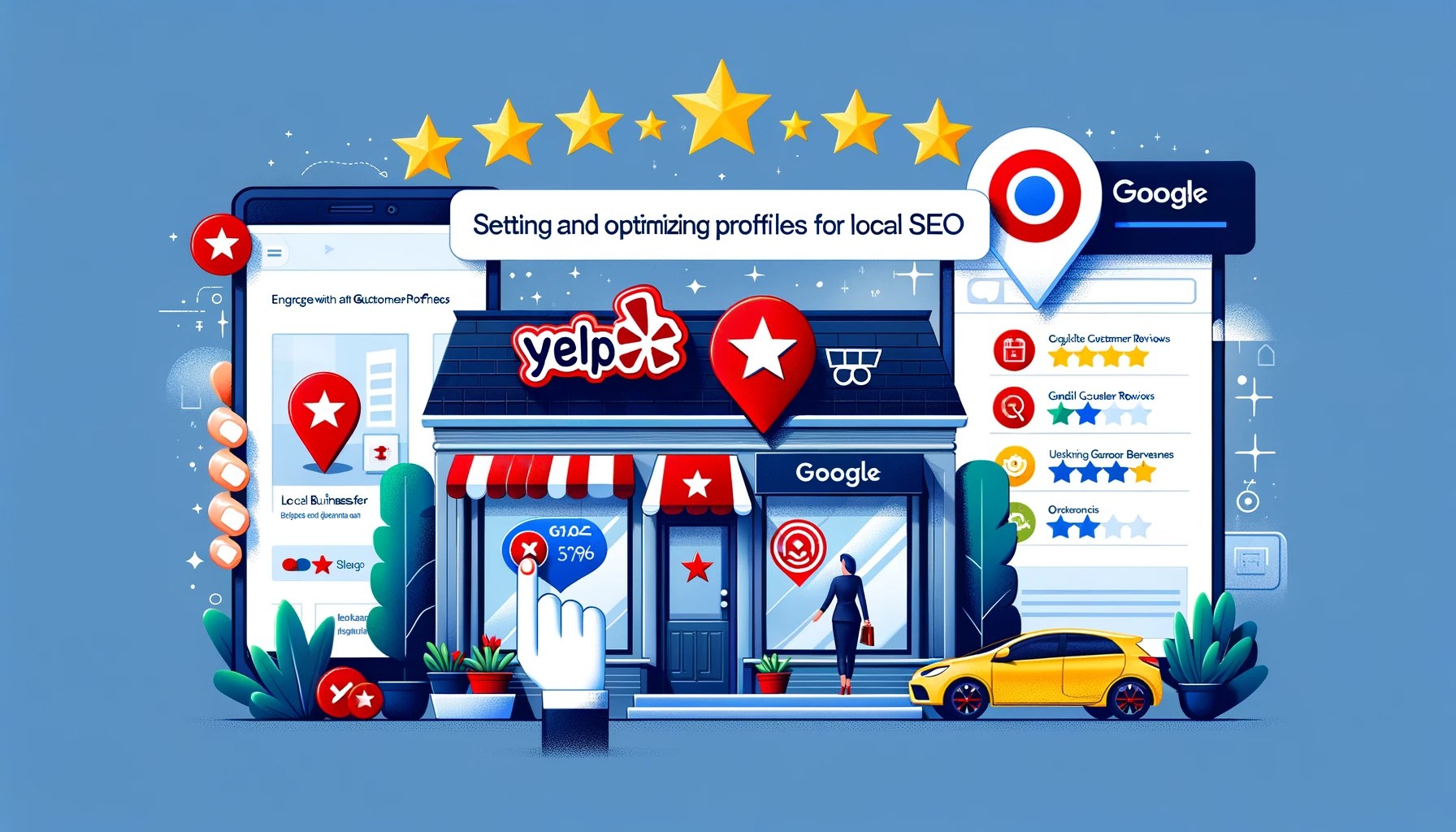
In the realm of local SEO, having a strong presence on Yelp and Google Business is indispensable. These platforms not only help potential customers find your business but also offer an opportunity to showcase your services, gather reviews, and improve your local search engine visibility. Here’s how you can set up and optimize these accounts.
Setting Up Yelp for Business
- Create Your Business Account: Visit Yelp for Business Owners (biz.yelp.com) and click on “Manage my free listing.” Fill in your business details to create your account.
- Claim Your Business: Search for your business on Yelp to see if it already exists. If it does, claim it as your own. If not, you can add a new business listing.
- Optimize Your Listing: Add a thorough description, upload high-quality photos, and ensure your business hours, address, and contact information are accurate.
- Engage with Reviews: Respond to reviews professionally, thanking customers for positive reviews and addressing any negative feedback constructively.
Google Business Profile Setup
- Sign Up or Log In: Go to Google My Business (google.com/business) and sign in with your Google account. If you don’t have one, you’ll need to create it.
- Add Your Business: Click on “Manage now” and enter your business name. If it appears in the dropdown menu, it means it’s already on Google, and you can claim it. If not, you can add it as a new business.
- Verify Your Business: Google needs to verify that your business is legitimate and that you’re the owner. Verification can be done by mail, phone, or email, depending on your business type.
- Optimize Your Profile: Complete your profile by adding a description, hours of operation, photos, and services offered. Regularly update your profile with news, offers, and events.
Tips for Optimizing Your Profiles
- Use Keywords Strategically: Incorporate relevant keywords into your business descriptions and posts to improve your visibility in local search results.
- Encourage Reviews: Ask satisfied customers to leave positive reviews on your Yelp and Google Business profiles. Reviews can significantly impact your local SEO and attract more customers.
- Stay Active: Regularly update your profiles with new photos, special offers, and respond to reviews to keep your listing active and engaging.
- Use Insights: Both Yelp and Google Business offer insights and analytics. Use this data to understand your customers better and tailor your offerings to meet their needs.
By effectively setting up and optimizing your Yelp and Google Business accounts, you’re laying a solid foundation for your local SEO efforts. These platforms are crucial for enhancing your online visibility, engaging with your community, and driving local traffic to your business.
Expanding Visibility with Bing Webmaster Tools
While Google may be the most popular search engine globally, Bing holds a significant share of the search market, making it an important platform for your SEO strategy. Bing Webmaster Tools offers a suite of reports, tools, and resources to help you understand your website’s performance in Bing search results. Here’s how to get started:
Setting Up Bing Webmaster Tools
- Create or Sign In to Your Account: Visit the Bing Webmaster Tools website (http://www.bing.com/toolbox/webmaster) and sign in with your Microsoft account. If you don’t have one, you’ll need to create it.
- Add Your Site: Click on “Add a Site” and enter your website’s URL. You’ll also be asked to add some basic details about your site.
- Verify Ownership: Similar to Google Search Console, Bing requires you to verify that you own the site you’re trying to add. You can verify ownership through several methods, including XML file authentication, Meta tag, adding a CNAME record to DNS, or importing your site from Google Search Console.
- Explore Bing Webmaster Tools: Once verified, you have access to a dashboard that provides insights into your site’s performance on Bing. Features include search traffic data, index explorer, SEO reports, and more.
Integrating Google Search Console with Bing Webmaster Tools
One of the convenient features of Bing Webmaster Tools is the ability to import your site directly from Google Search Console. This simplifies the setup process and allows you to use the work you’ve already done in GSC to enhance your site’s performance in Bing searches.
- Select Import from Google Search Console: On the Bing Webmaster Tools dashboard, look for the option to import a site from Google Search Console.
- Grant Permissions: You’ll need to grant Bing permission to access your Google Search Console data. Follow the prompts to authenticate and authorize the data sharing.
- Complete the Import: After granting permissions, Bing will import your site. This process includes your sitemap and other relevant settings from GSC.
Benefits of Using Bing Webmaster Tools
- Search Performance Insights: Understand how your site performs in Bing search results, including impressions, clicks, and click-through rates.
- SEO Reports and Diagnostics: Access detailed reports on your website’s health and performance, identifying issues that could impact your visibility in Bing searches.
- Keyword Research Tool: utilize Bing’s keyword research tool to discover relevant keywords, and then optimize your content to work with those keywords.
By leveraging Bing Webmaster Tools alongside Google Search Console, you ensure your site is optimized for a broader audience, tapping into potential traffic and visibility opportunities across multiple search engines.
Conclusion:
Congratulations on taking the first steps towards mastering SEO for your website. By setting up key accounts with Google Search Console, Google Analytics, Yelp, Google Business, and Bing Webmaster Tools, you’re now equipped with the tools necessary to track your site’s performance, understand your audience, and enhance your visibility in search engine results.
Launching Your SEO Journey with Confidence:
Remember, the journey to SEO success is ongoing. The digital landscape is ever-evolving, and staying ahead requires continuous learning and adaptation. Here are a few parting tips to keep you on the path to success:
- Stay Active: Regularly update your content, engage with your audience, and monitor your SEO performance through the tools you’ve set up. An active website is more likely to rank well in search engine results.
- Analyze and Optimize: Use the insights gained from Google Analytics and Bing Webmaster Tools to refine your content and SEO strategies. Look for trends in user behavior, and adjust your approach to meet your audience’s needs.
- Seek Feedback: Encourage reviews and feedback on your Yelp and Google Business profiles. Positive reviews can boost your local SEO and attract more customers to your business.
- Keep Learning: SEO is a field that’s constantly changing. Stay informed about the latest trends and best practices by following SEO blogs, attending webinars, and participating in online forums.
- Be Patient: SEO results don’t happen overnight. It takes time for changes to reflect in search rankings. Keep building quality content, optimizing your site, and refining your strategies.
Starting your SEO journey might feel overwhelming at first, but with the right tools and a strong commitment to improve, you can definitely see great success. Use this guide as your step-by-step roadmap to get your accounts ready, and always remember, every single step you make is a move closer to nailing SEO.
We hope this guide has provided you with a solid foundation to begin optimizing your website for better search engine visibility. Good luck, and here’s to your SEO journey!


 Simple Web Solutions
Leave a comment